
Install Certificate
HTTPS requests are encrypted. Install the root certificate to view their complete contents.
Installation steps
1. Download the root certificate
Open HttpShark → HTTPS Proxy → Install Root Certificate, then tap the download button to save HttpSharkCA.crt locally.
2. Install the certificate in the system
Use the following system path to open the certificate-installation screen:
Settings → Privacy & security → Advanced → Certificates & credentials → Install from storage → CA certificate
If the system does not recognize the .crt extension, rename the certificate file to use the .pem extension before installing it.
Reference screenshots:
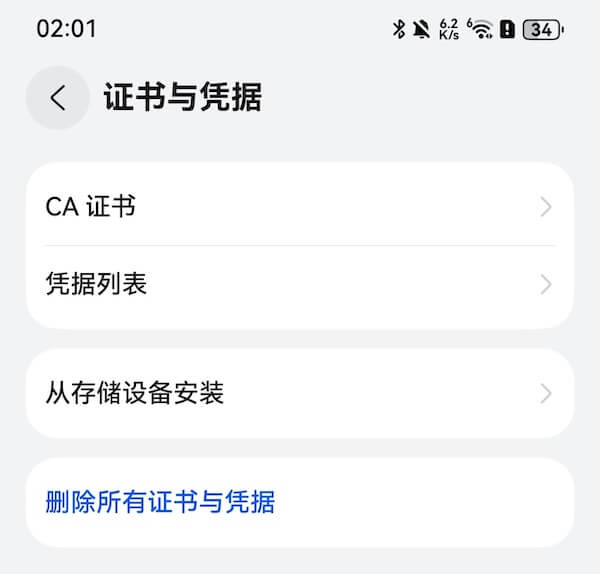
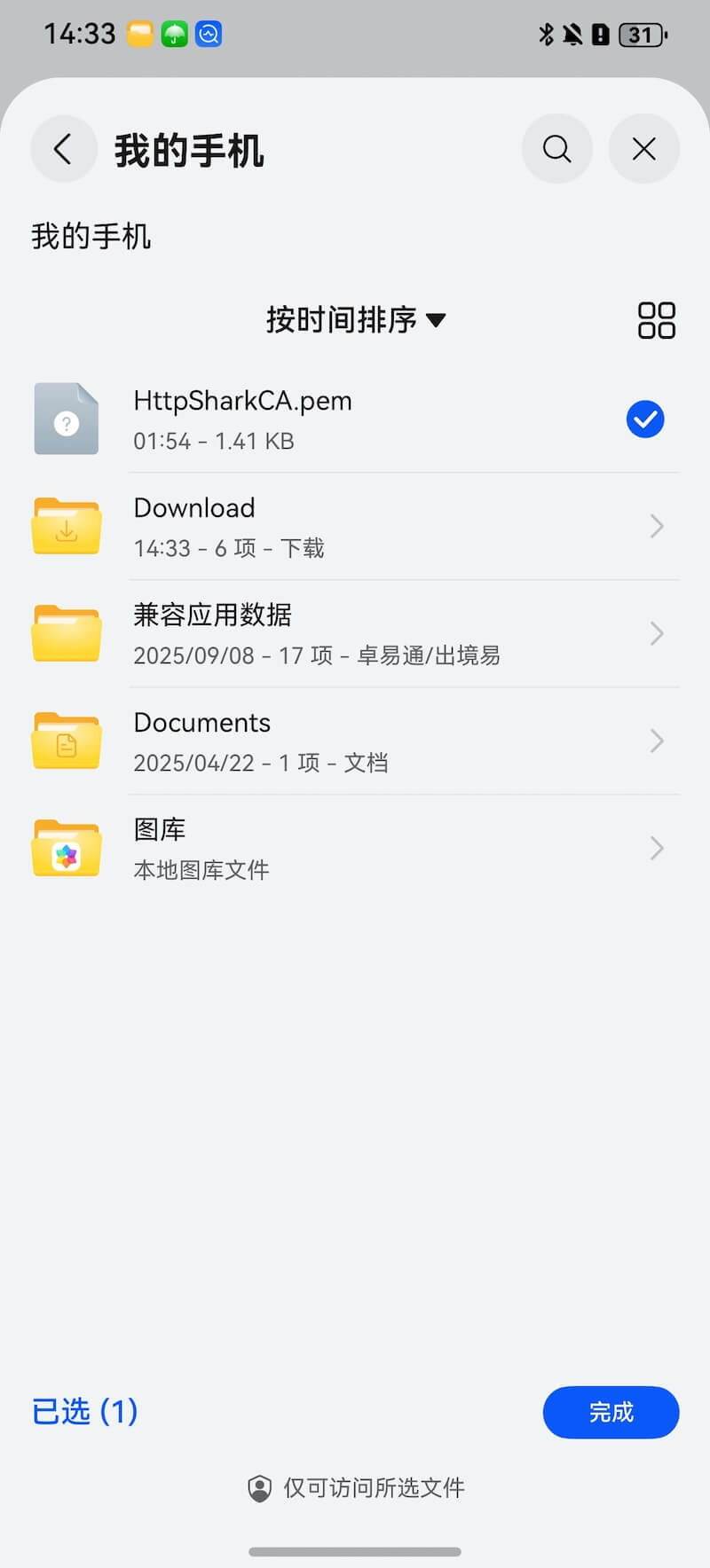
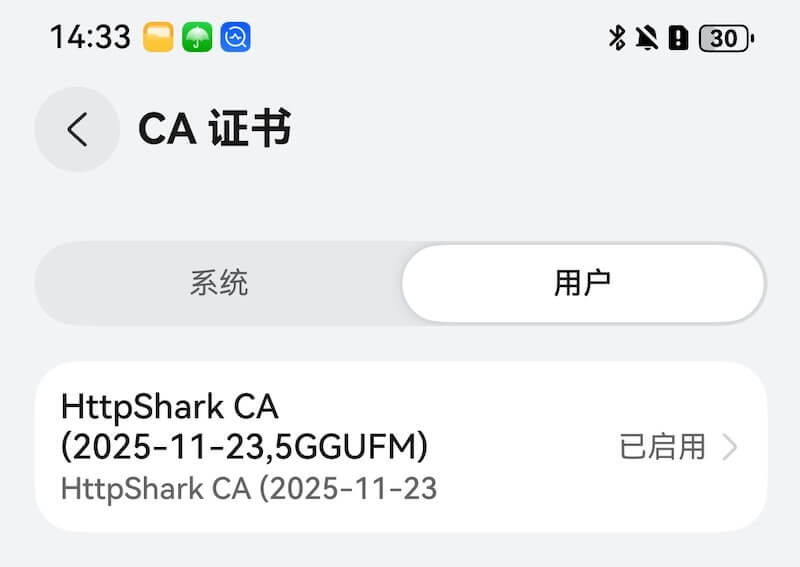
After installation, check CA certificates to confirm that it was installed successfully.
3. Enable the HTTPS proxy
Return to the app. Open HTTPS Proxy from the upper-right corner of the capture screen or from Settings, then turn on Enable HTTPS Proxy.
Troubleshooting
- HTTPS content is still unavailable after installation: Check that the system proxy is enabled and the certificate is trusted.
If the issue persists, see the FAQ.